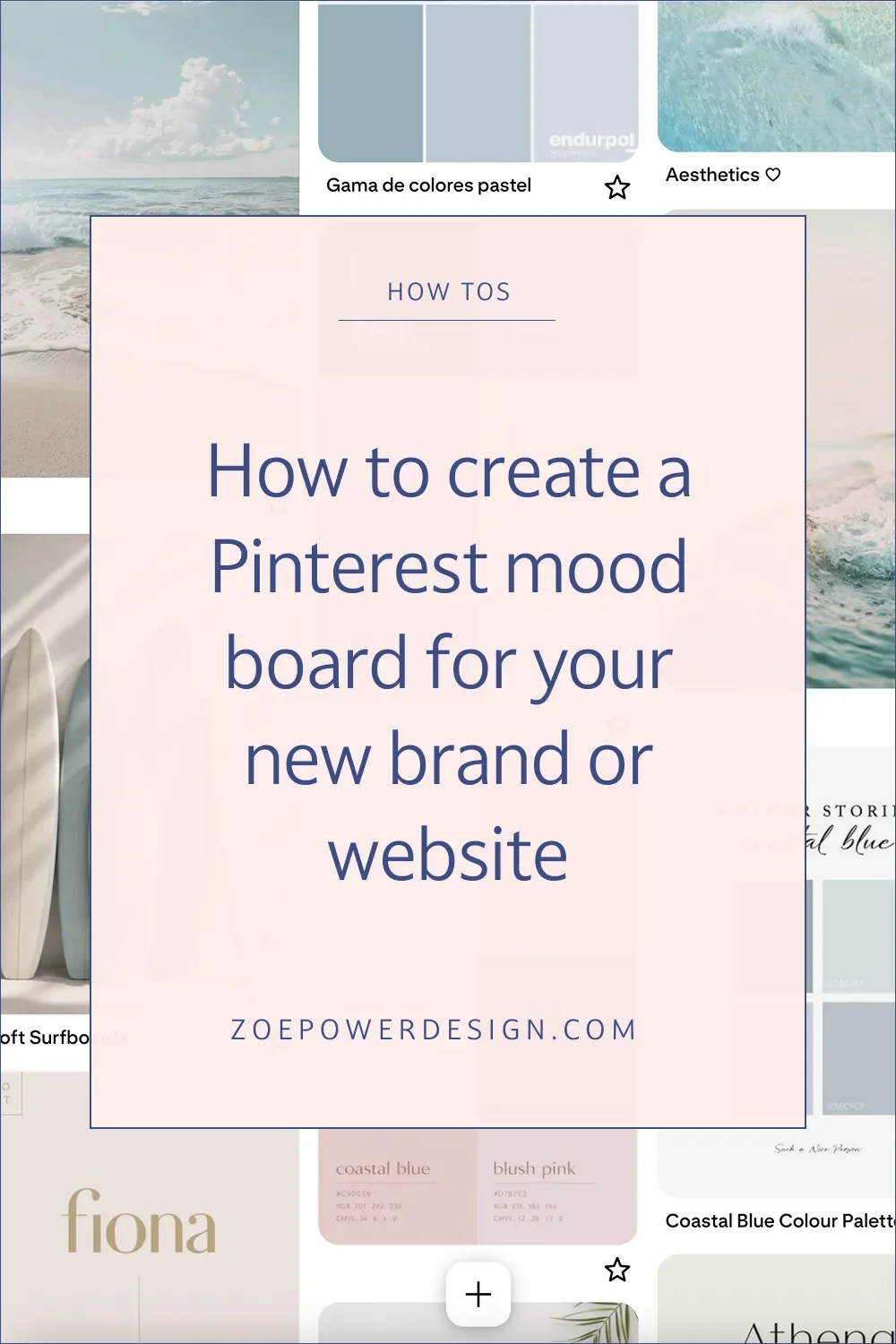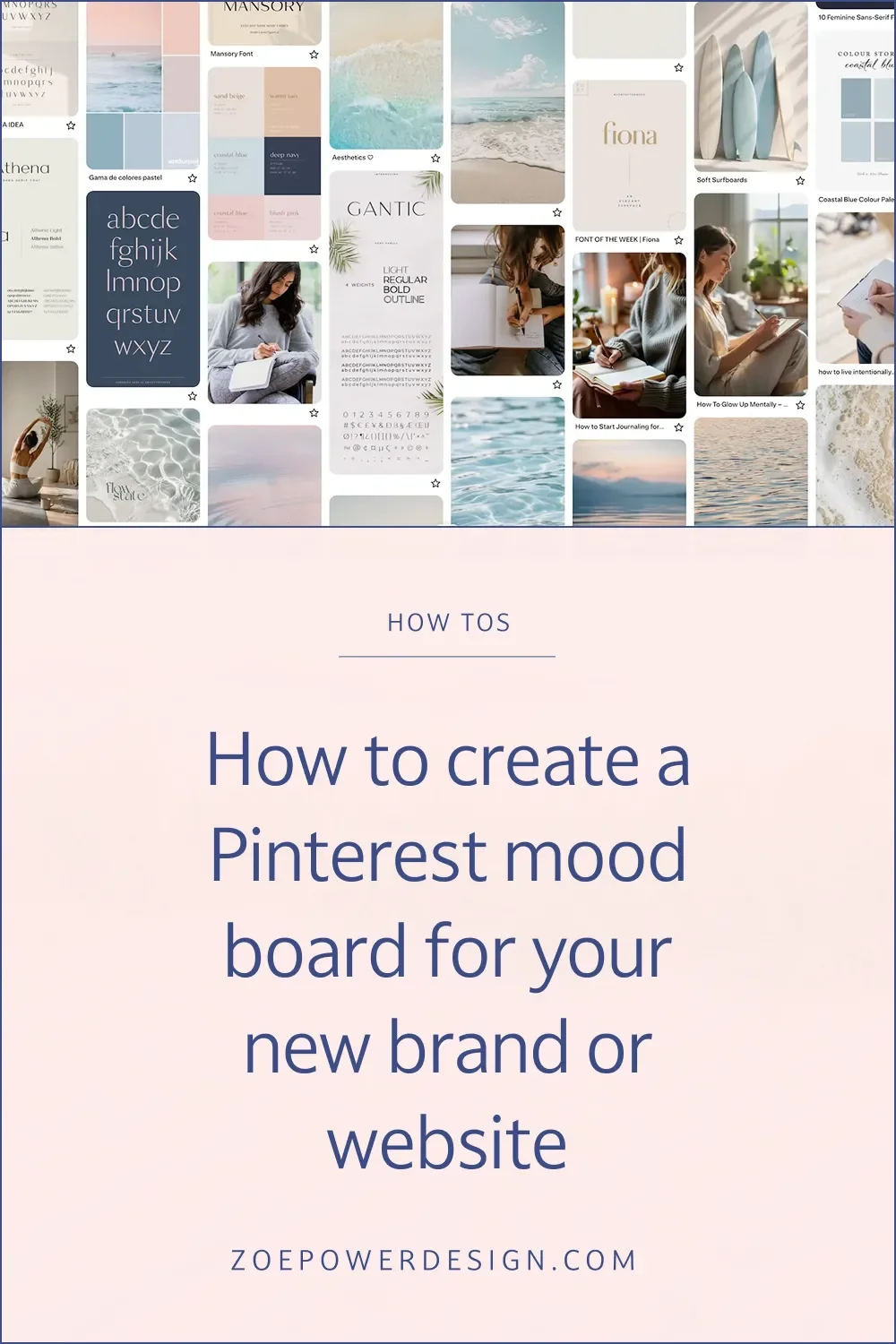
You probably already know the feeling you want your website to have, but putting that feeling into words can be really hard. That’s where a Pinterest mood board comes in - instead of trying to describe your vision in words, you collect visual examples of it.
What is a Pinterest mood board?
It’s basically a collection of visual ideas that help describe the feeling or concept you want to convey. In this case, it’s a collection of ideas to describe what you want your brand and/or website to look and feel like.
Pinterest is an online visual search engine for finding ideas and inspiration; you can then save these ideas (called “pins”) to virtual boards and organise them.
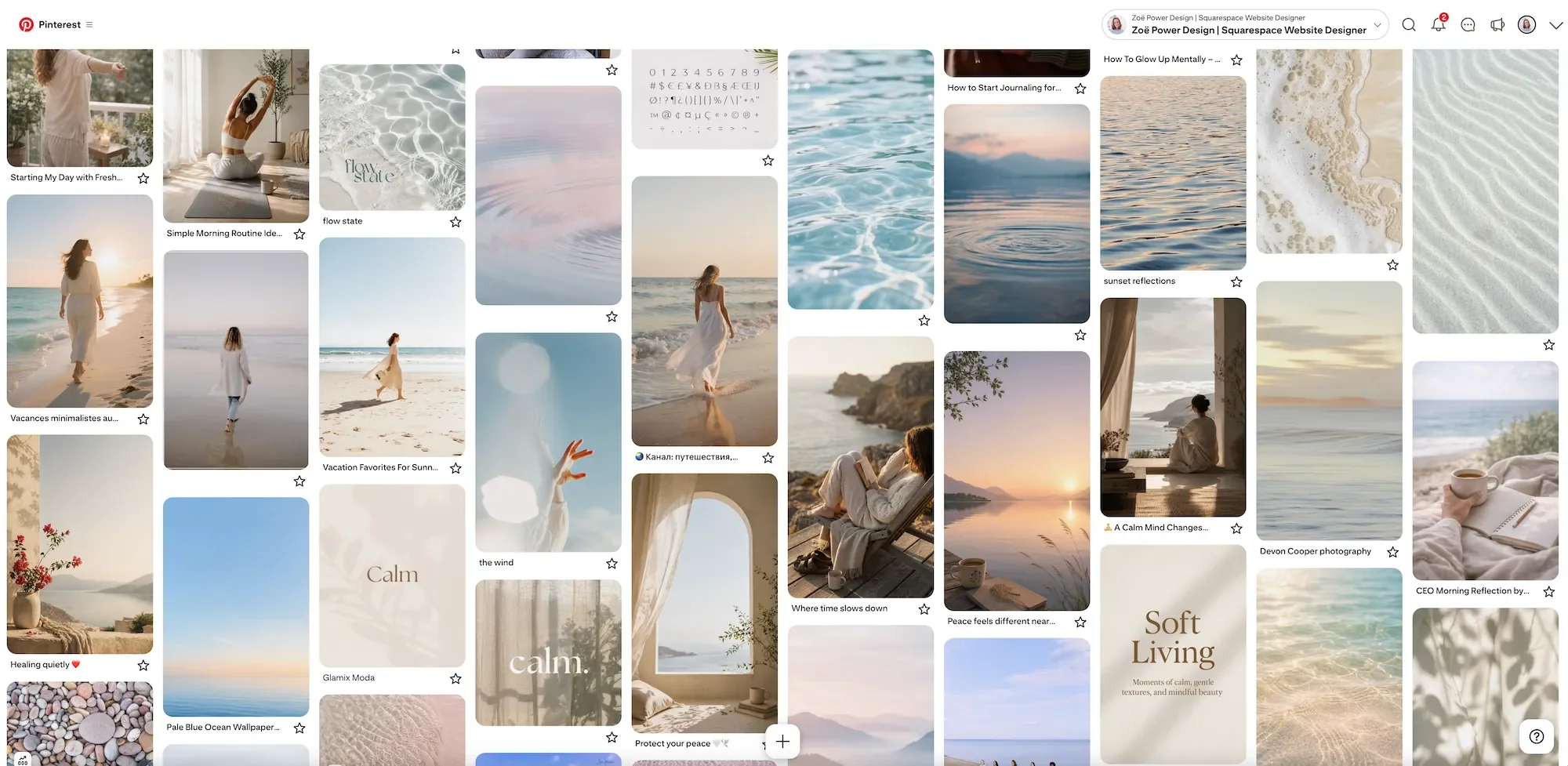
Why create a mood board? (vision board)
It helps you get clearer about the look and feel of your new website or brand. By gathering visual examples together that you are drawn to, you can start to see patterns and preferences emerge.
It is a great help to a web or brand designer you are working with, as they can get a clearer idea of what you are looking for (and means you’re much more likely to get a website design that you’re really happy with). It is often easier to express ideas visually rather than in words.
What do I put on a mood board?
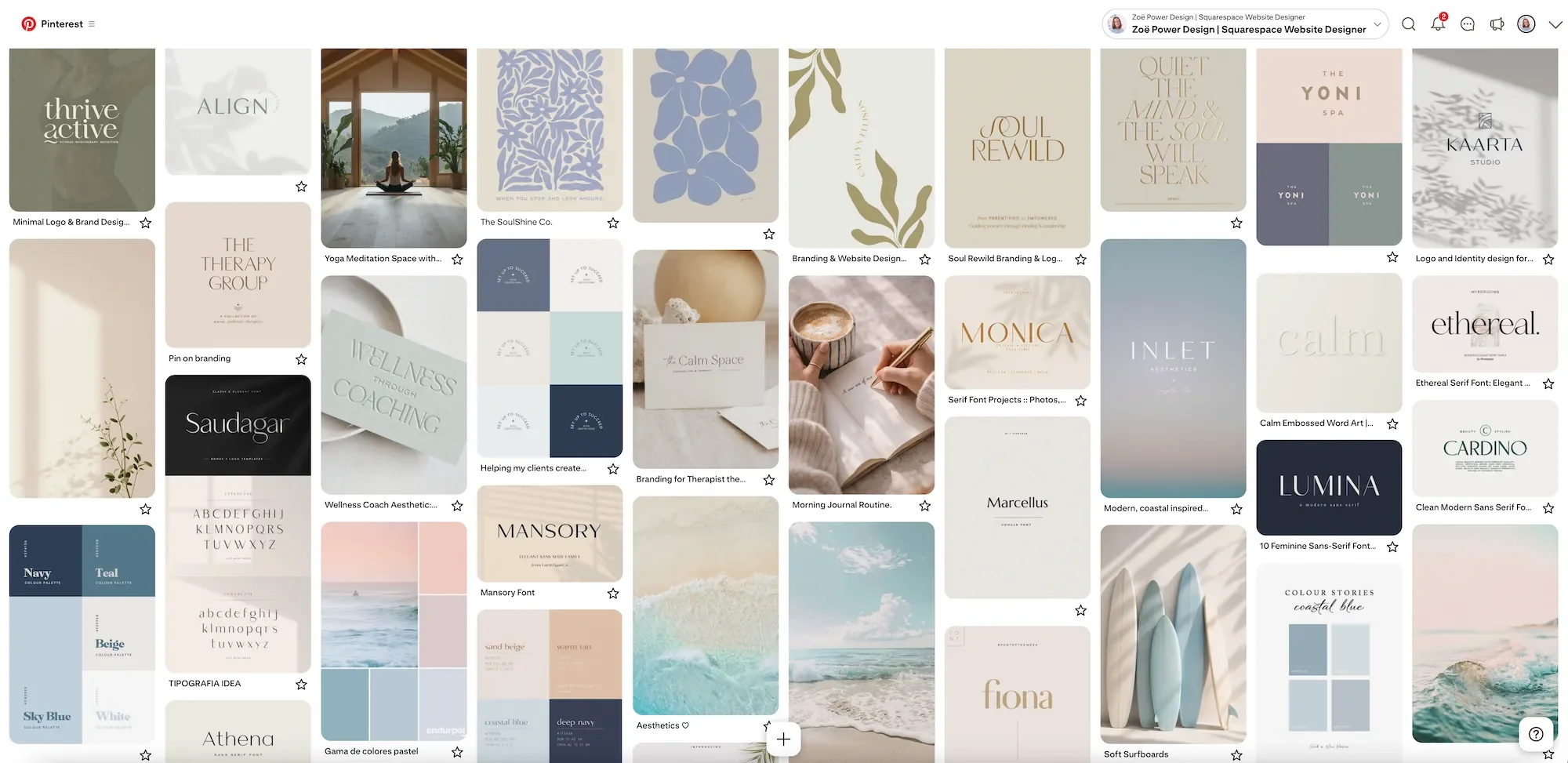
This is a very free-form process, so there are no rules - basically anything that helps you express your idea. Think of it like visual brainstorming. Things that can be helpful to include are:
Colours and colour palettes
Photos
Shapes and patterns
Textures
Logos
Fonts and typography
Illustrations
Symbols
Quotes
Website designs
How to start
Brainstorm your brand first
Think about your brand personality and identity and what makes your brand unique. Try and describe the feeling or mood you want to convey and how you want to be perceived professionally. Make a short list of adjectives that describe all the above.
Create your board on Pinterest
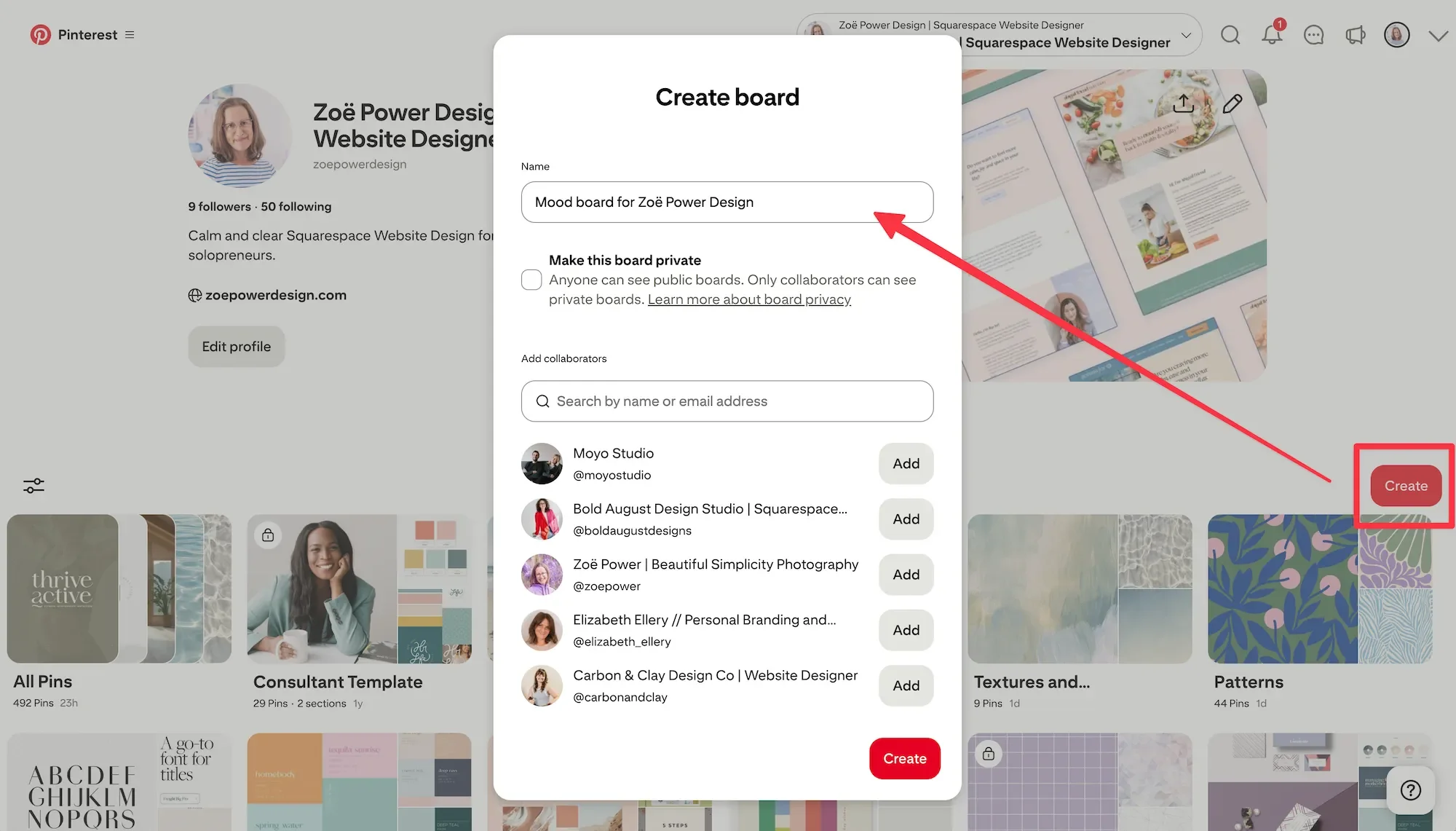
Login to Pinterest or create an account if you don’t have one. From your profile, click the red “Create” button and choose “board”. Give it a name and decide whether you want the board to be public or private. If you decide to keep it private, you might want to add your designer as a collaborator so they can see your ideas.
Start searching
Keep things open-ended to start with. You can try searching for the brand adjectives you listed previously, e.g. calm, and then refine from there. If you have a colour in mind, you can always start with that. See below for more info on all the different ways to search and discover content on Pinterest and some examples of search terms.
Pin anything you like
This is a free-form brainstorming exercise, so don’t hold back. Pin anything that speaks to you in relation to your brand or website.
Pause and review
After a while, pause and click on your board and look at it as a whole. Are there patterns emerging? You might find that some things stick out and don’t look right - you might want to delete these. Maybe you’ve pinned lots of photos and colours, but haven’t looked at fonts or typography yet, so you might want to search for those. Or maybe you’re starting to hone in on more of a style, so you want to start narrowing down your searching and continue pinning.
Organise
If you’ve pinned lots and lots of ideas, you might want to organise them into folders within your board.
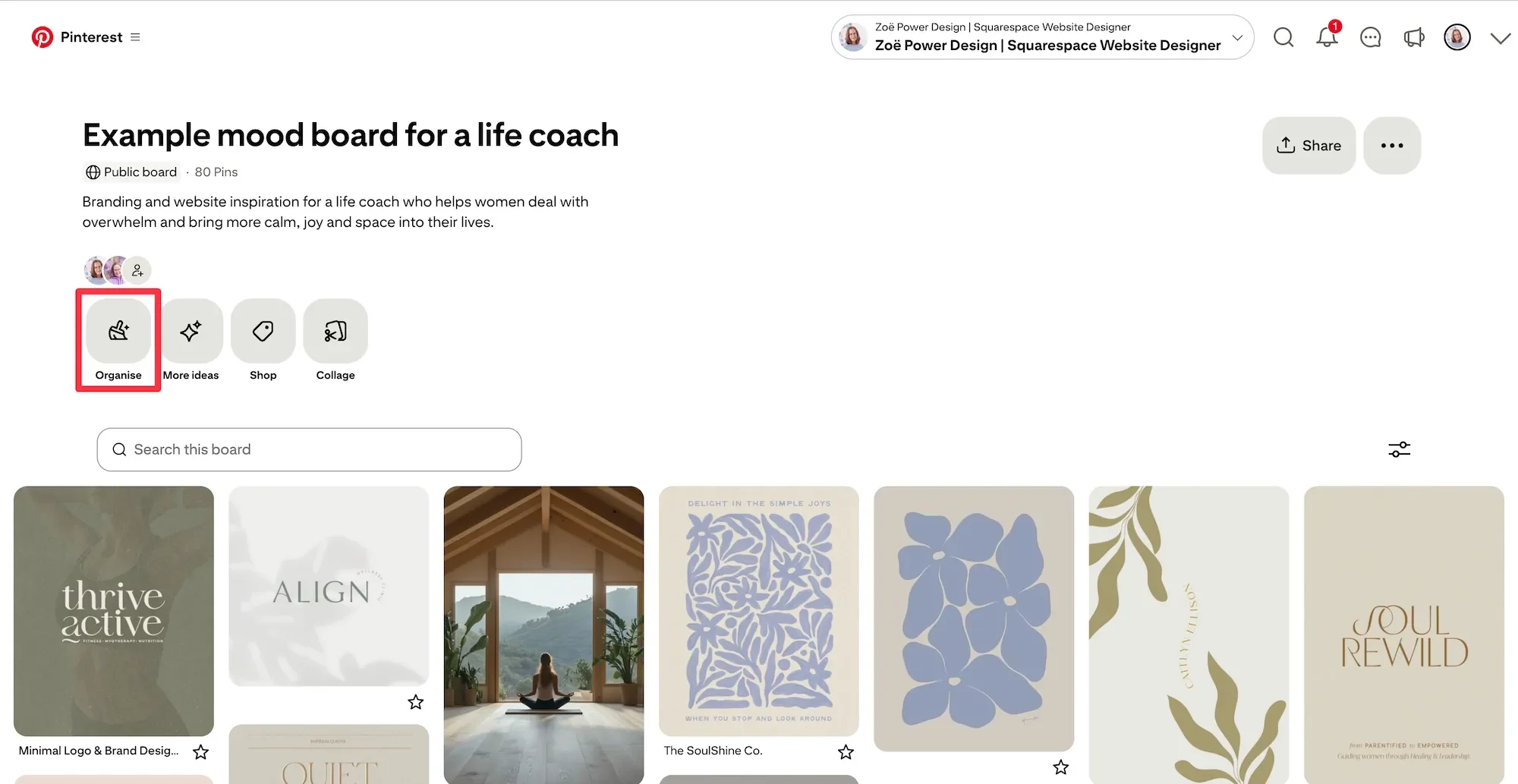
To do this, scroll to the top of the board and click “Organise”, then click on all the pins you want to group together and click the folder icon at the bottom of the board to “create section” and give it a name, e.g. “Typography”. This then removes all those pins from your main board and puts them in a sub-folder at the top of your board.
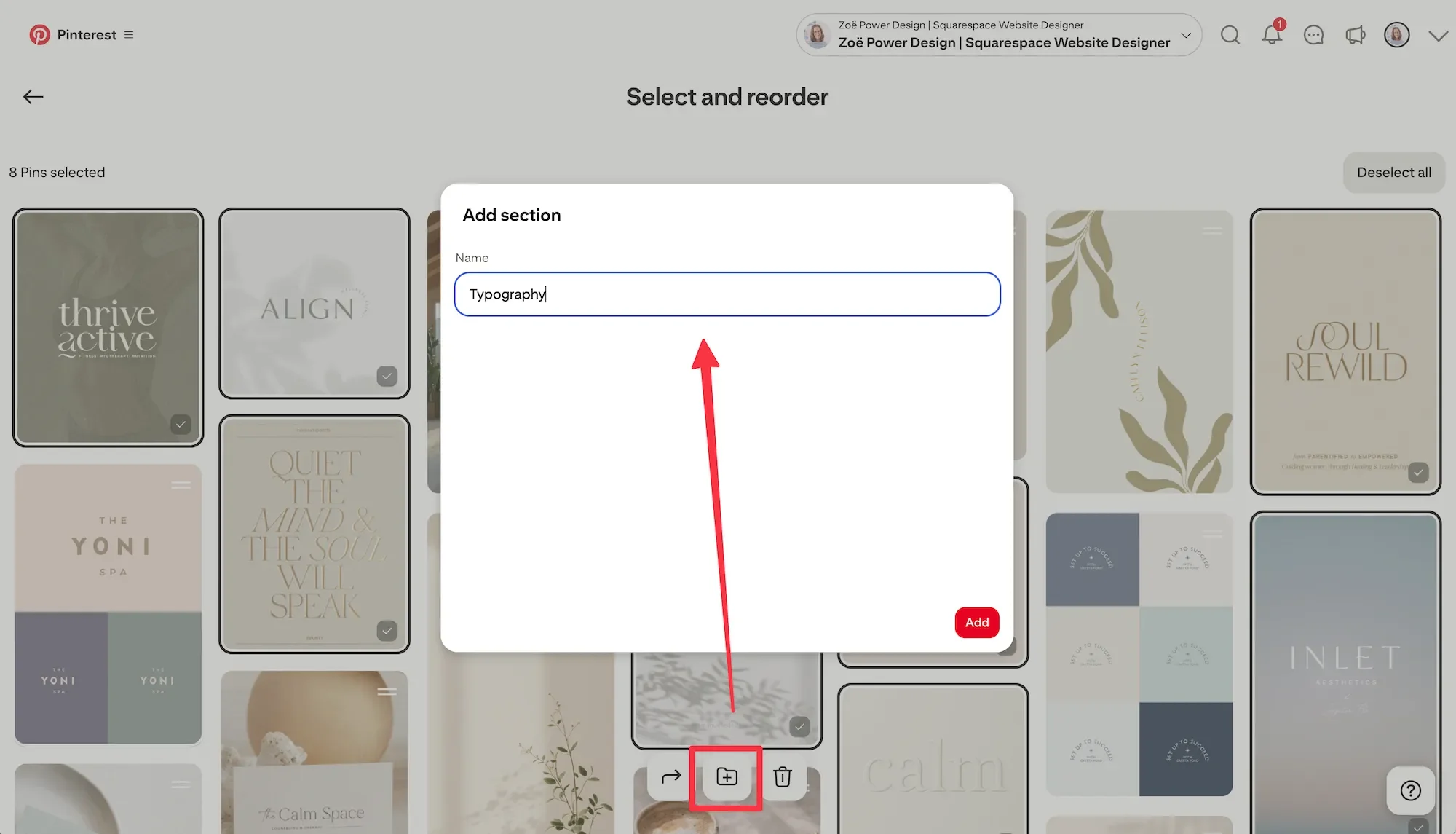
This isn’t essential and is very much a personal preference, but can help if you’re finding it hard to find some of your pins, or if you want to compare pins side by side.
Share and discuss
Once you’re happy with how your board looks and that you’ve captured all your ideas, you’ll want to share it with your web or brand designer, or perhaps with a business friend who knows you well if you’re DIYing.
It’s a really helpful input into a deeper discussion about your brand and website and what you want. This forms part of my Strategy Call for clients that work with me on Fully-custom website design projects or branding add-ons.
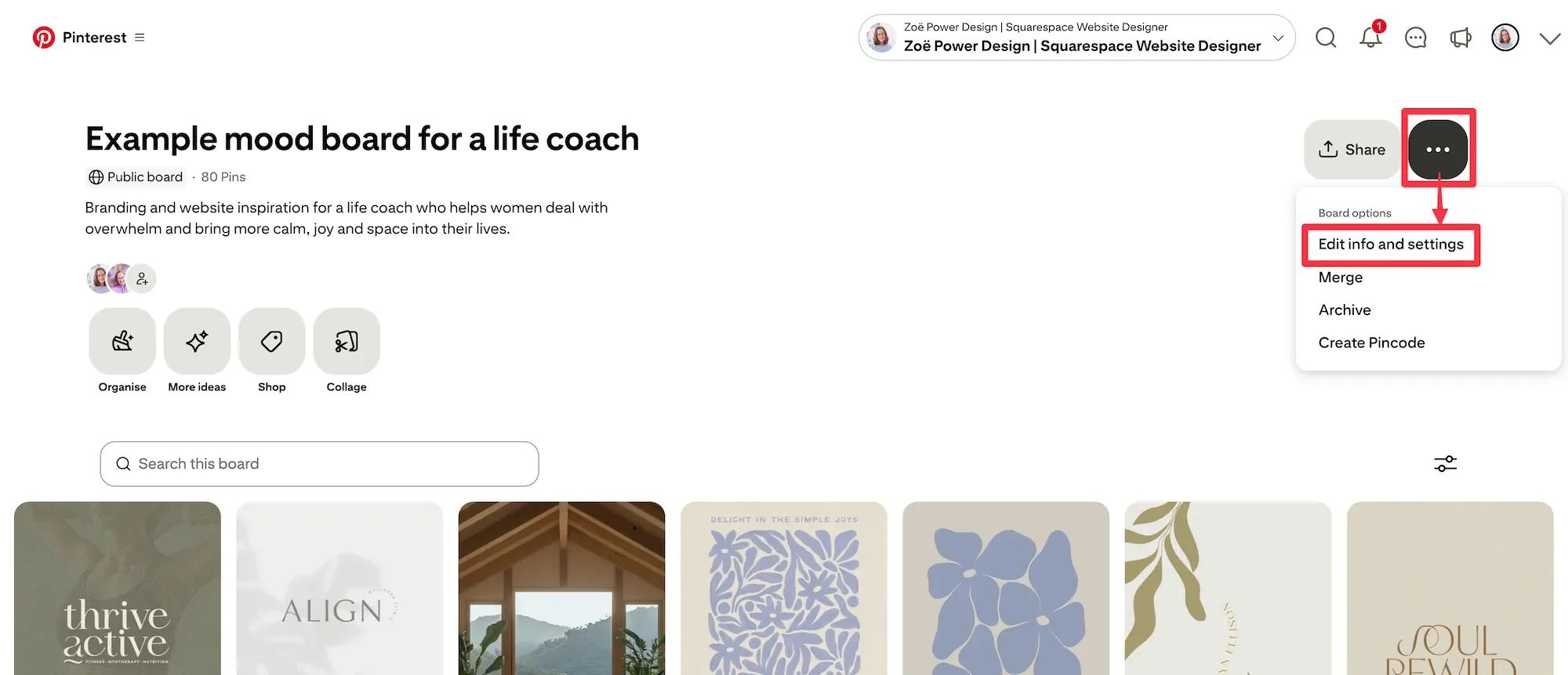
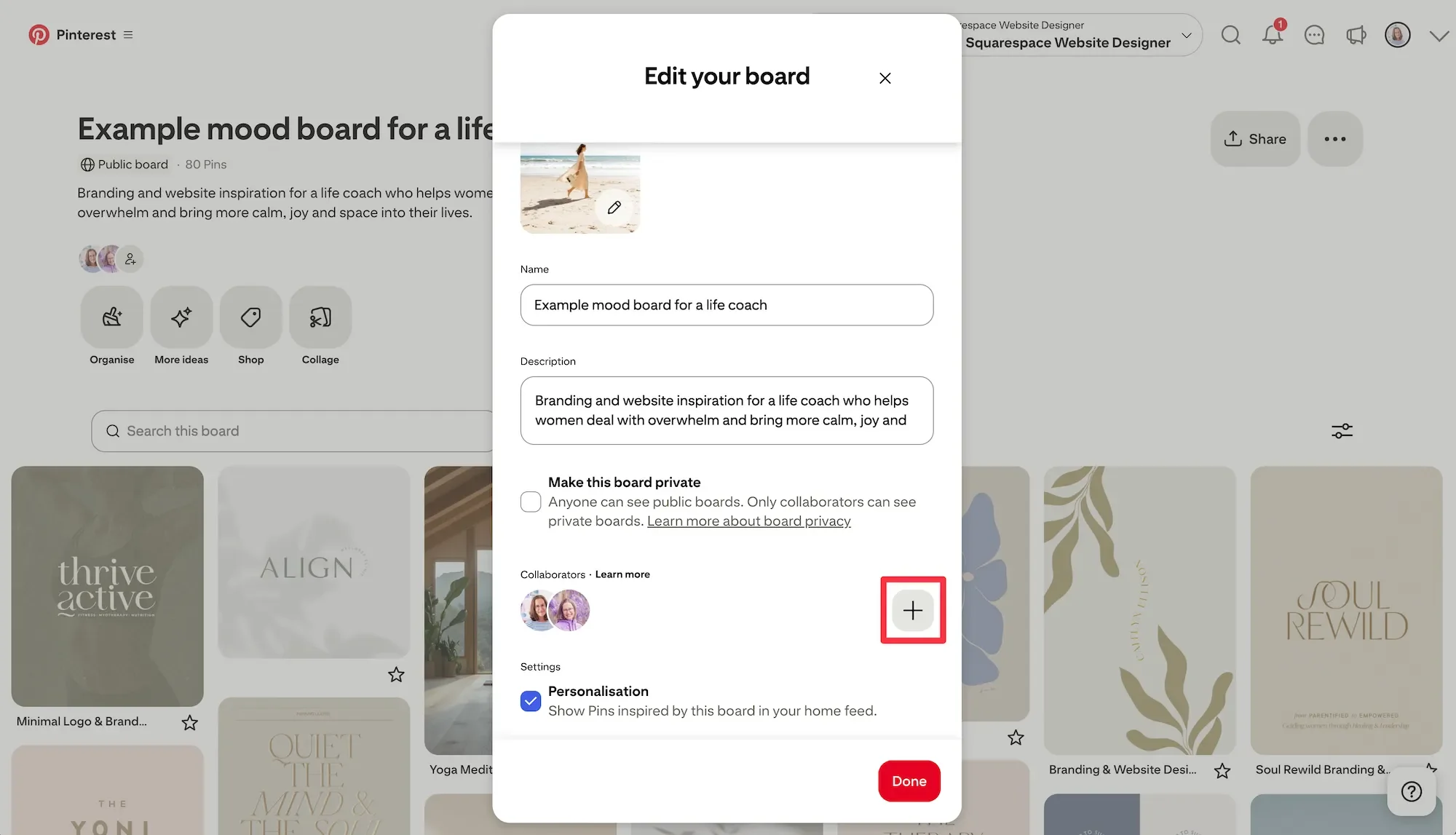
If your board is public, you can just copy and paste the URL to share it, but if it’s private, you’ll need to add your designer or friend as a collaborator on the board. To do this, click the three dots at the top right of your board and click “Edit info and settings” then click the + button to add a collaborator.
Pinterest was designed as a visual search engine and discovery tool, so there are many different ways to search and find content. In fact, it is very easy to get lost! These are the methods I usually use:
Search bar
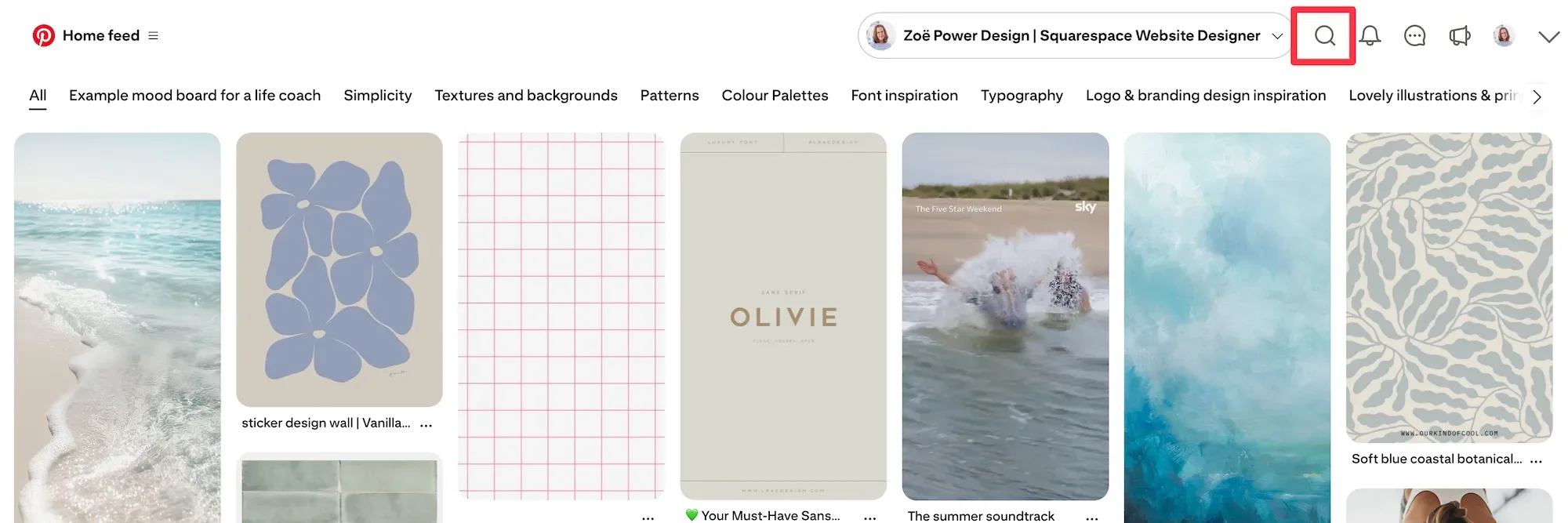
Click the magnifying glass symbol in the top navigation bar and type your search term into the search bar and click enter. There is a drop-down on the right side where you can choose to search “All Pins” or “Your Pins”. Make sure this is set to “All Pins”.
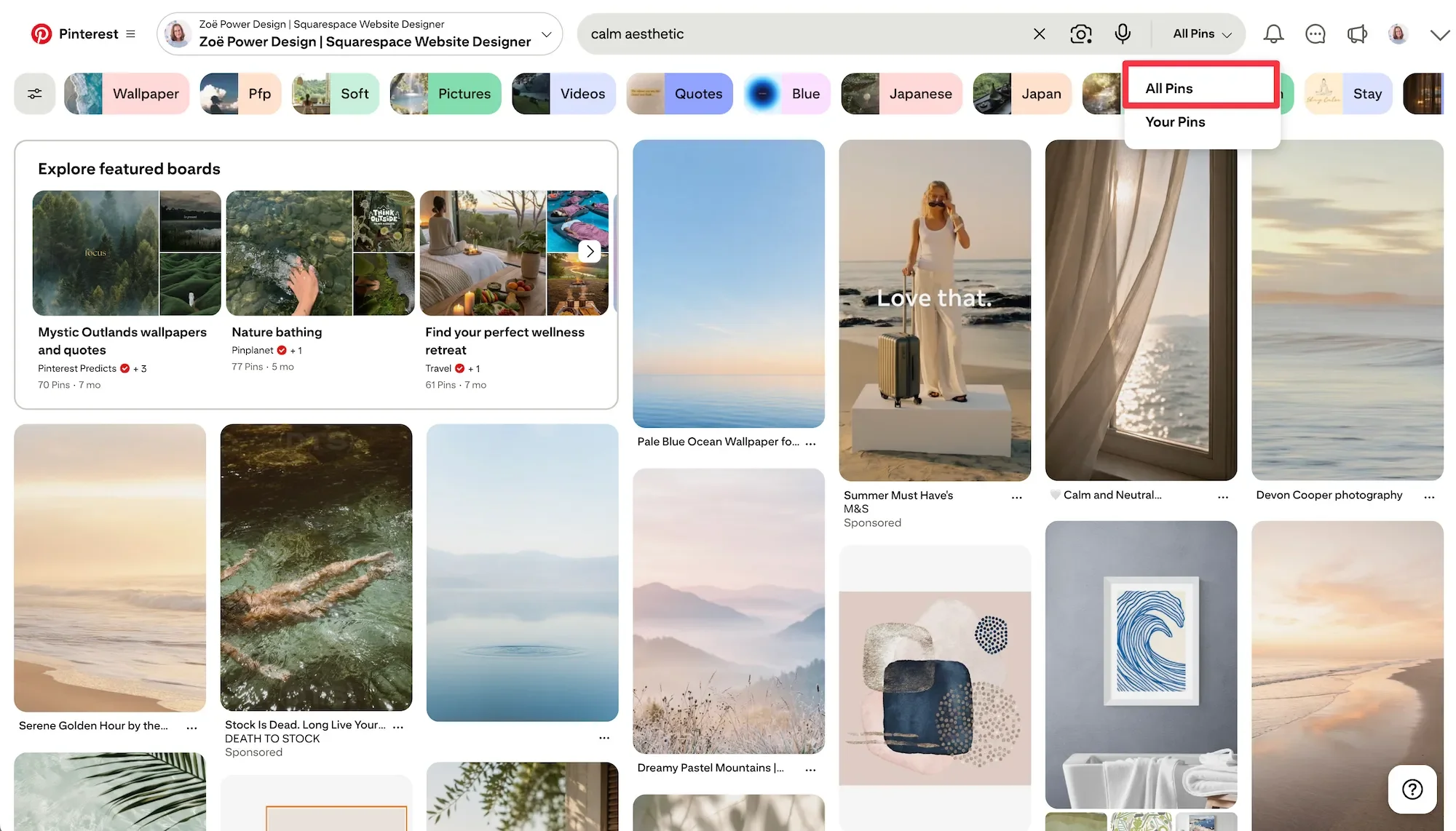
Refine your search with suggested search terms
After you’ve searched for something, you will see suggestions for refining your search with further search terms in little lozenges below the search bar. You can click any of these to add them onto your search.

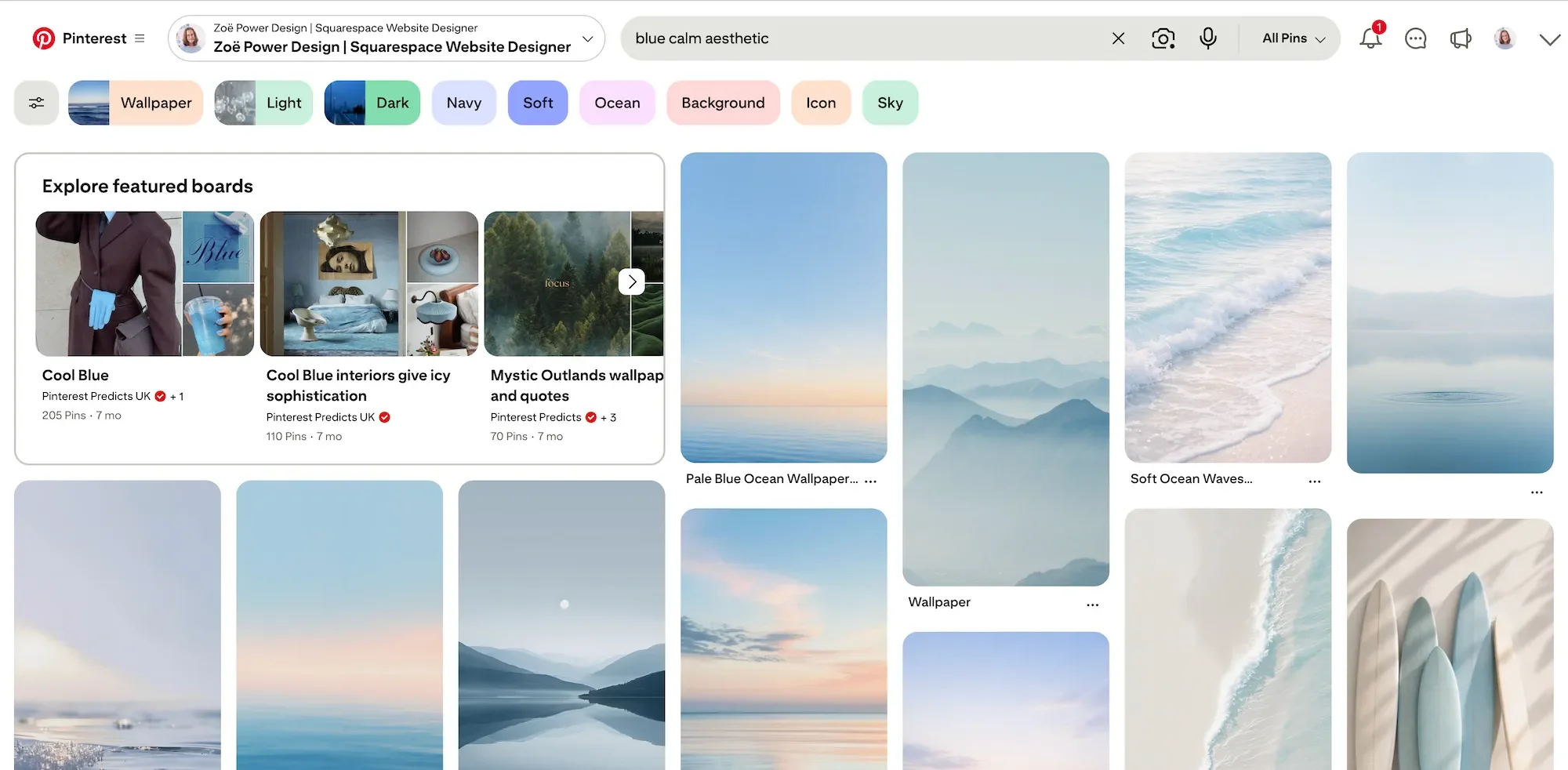
Drop-down list of related search terms
Click in the search bar with your search term in there and a drop-down list of other related terms will appear - you can click any of these. This is a great way to explore similar ideas.
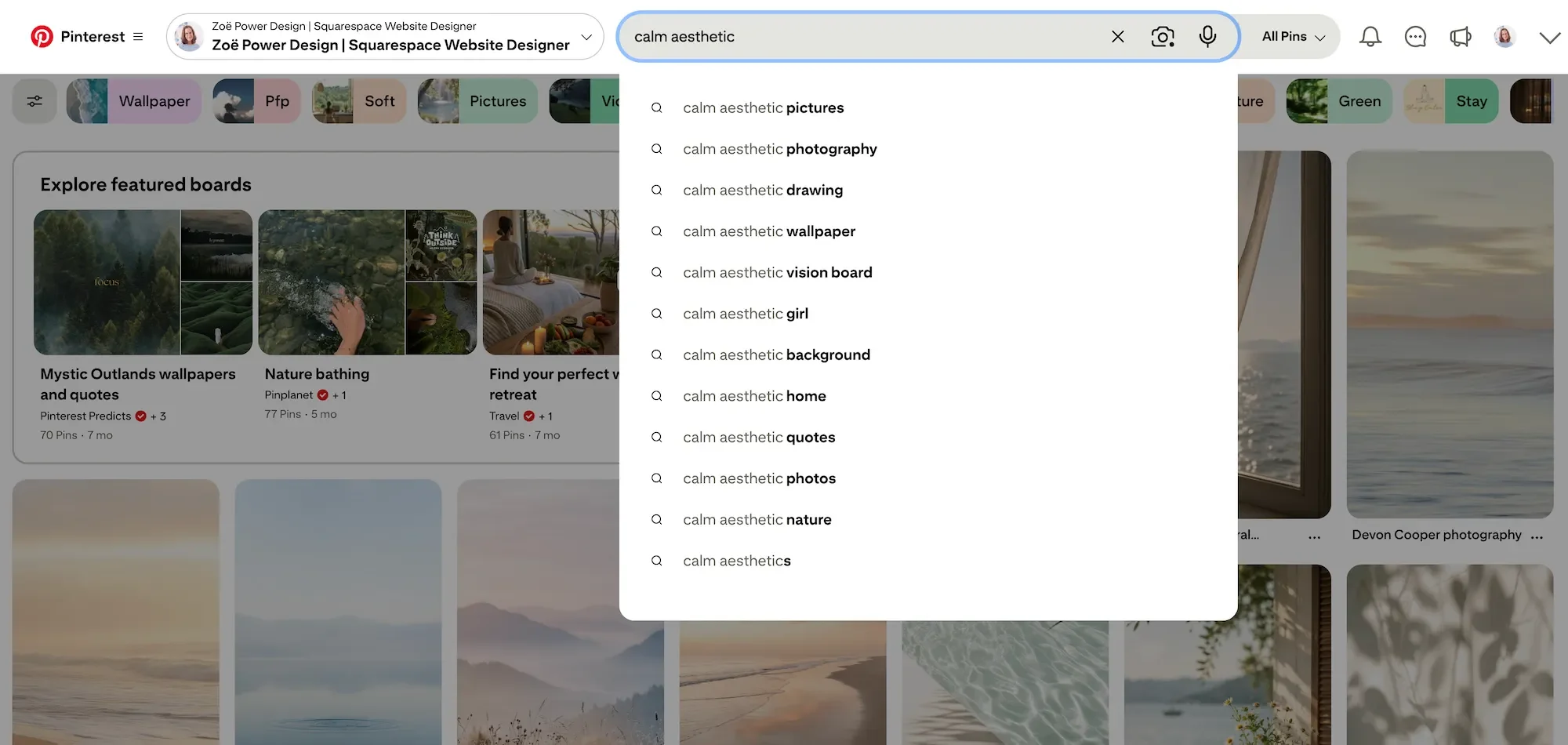
Click on a pin to see similar pins
When you click on a pin, Pinterest will show you other similar pins on the rest of the page. You can keep scrolling and the ideas will keep coming. It might also suggest related boards for you to explore.
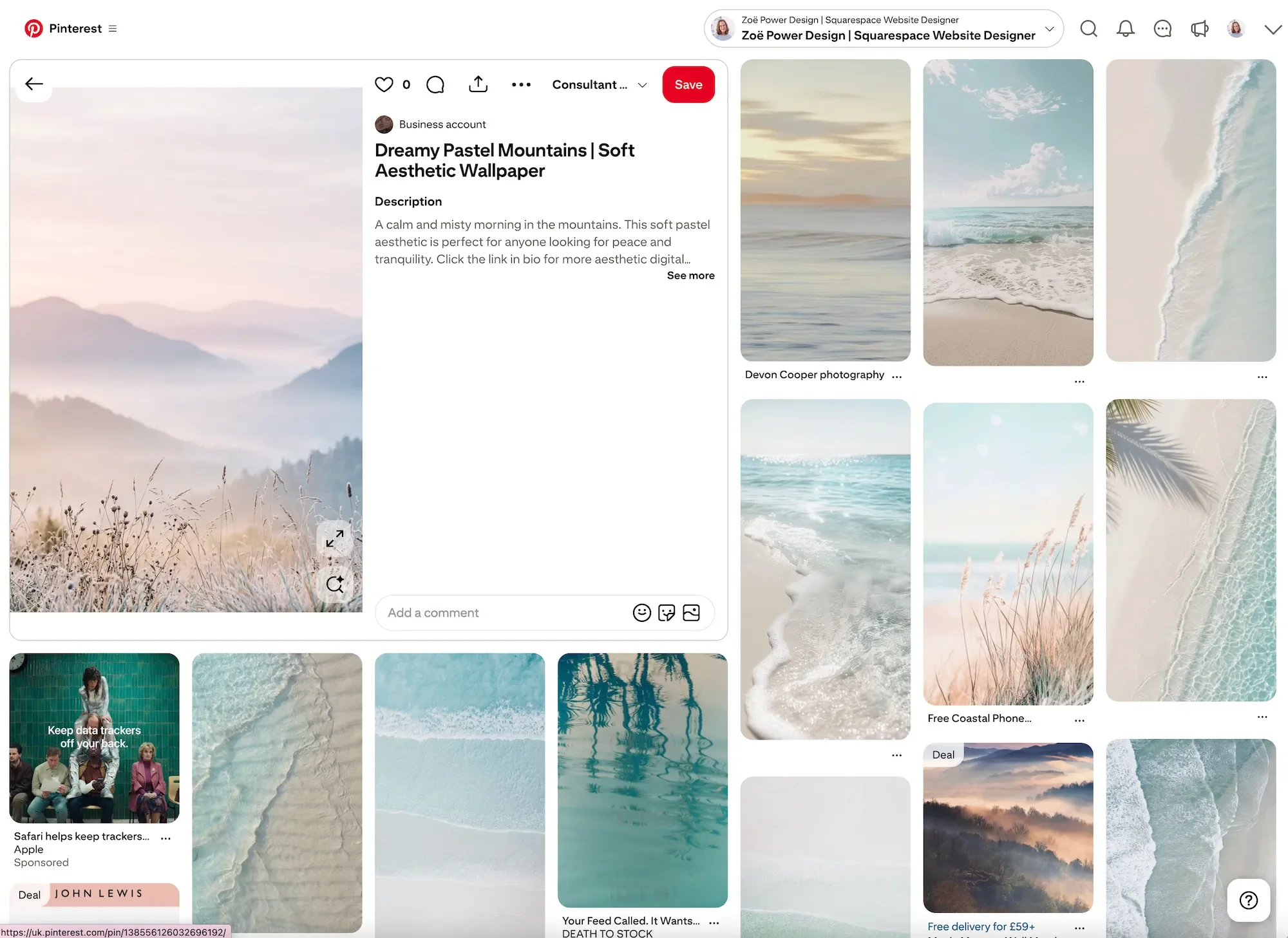
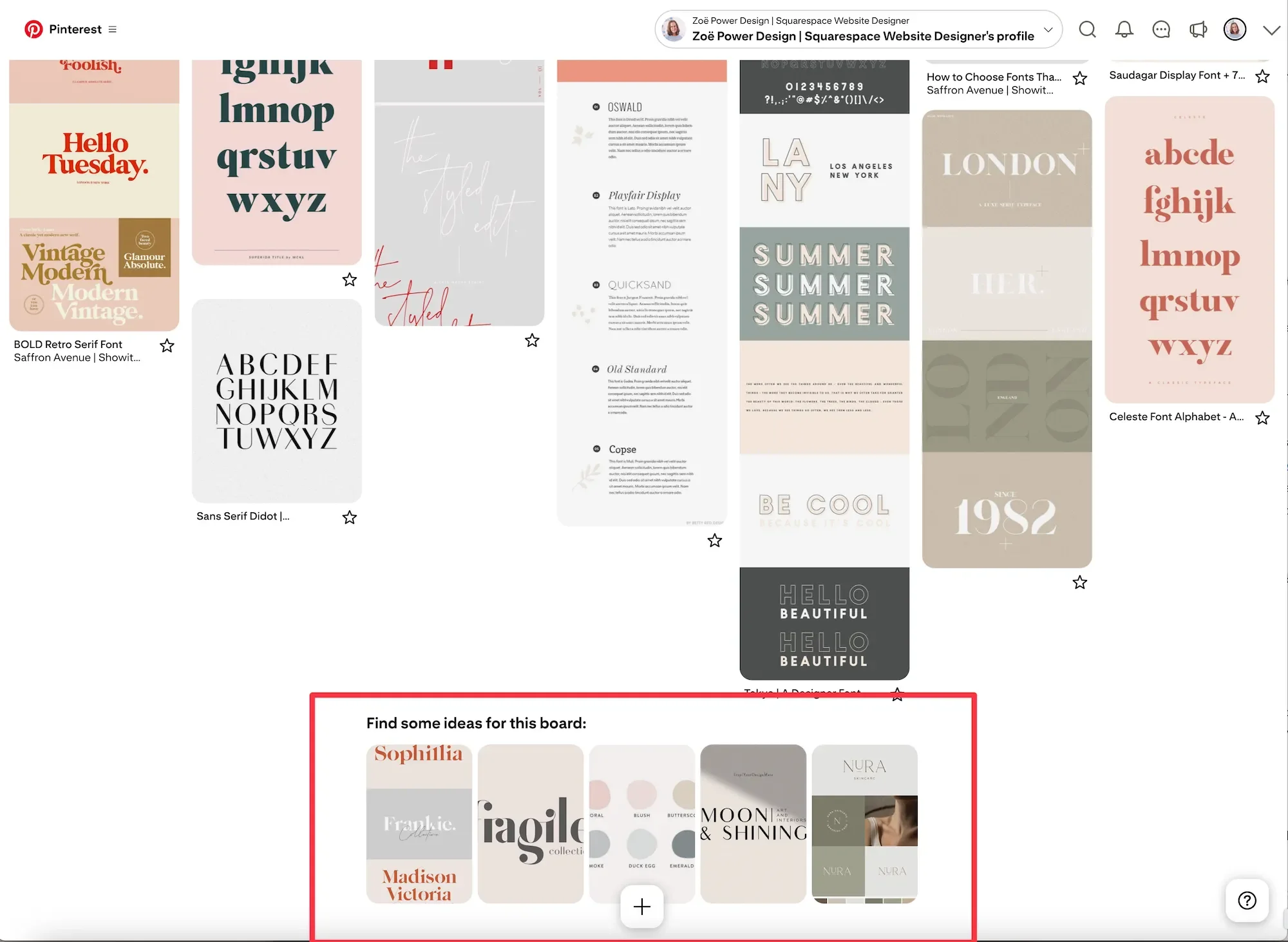
Suggested pins for your board
When browsing a board, Pinterest will show you other similar pins it thinks you might like at the bottom of the board. Click to see lots more ideas in an endless scrolling page. It often seems to show you duplicate items that you have already pinned, though, so do watch out for this.
Home screen suggestions
Once you’ve been pinning for a while, the algorithm learns your preferences and starts suggesting ideas for you. If you go to your home screen you will see lots of those suggestions, peppered with adverts of course. In the settings for each board (click the three dots in the top right corner of the board, then click “Edit info and settings”), you can choose whether to “Show Pins inspired by this board in your home feed”.
A word of warning: Pinterest can be a bit of a rabbit hole - once you start down there, you can be led to many different places, and then suddenly realise several hours have passed! It’s a wonderful discovery tool and a joy to use - but it can also eat a lot of your time!
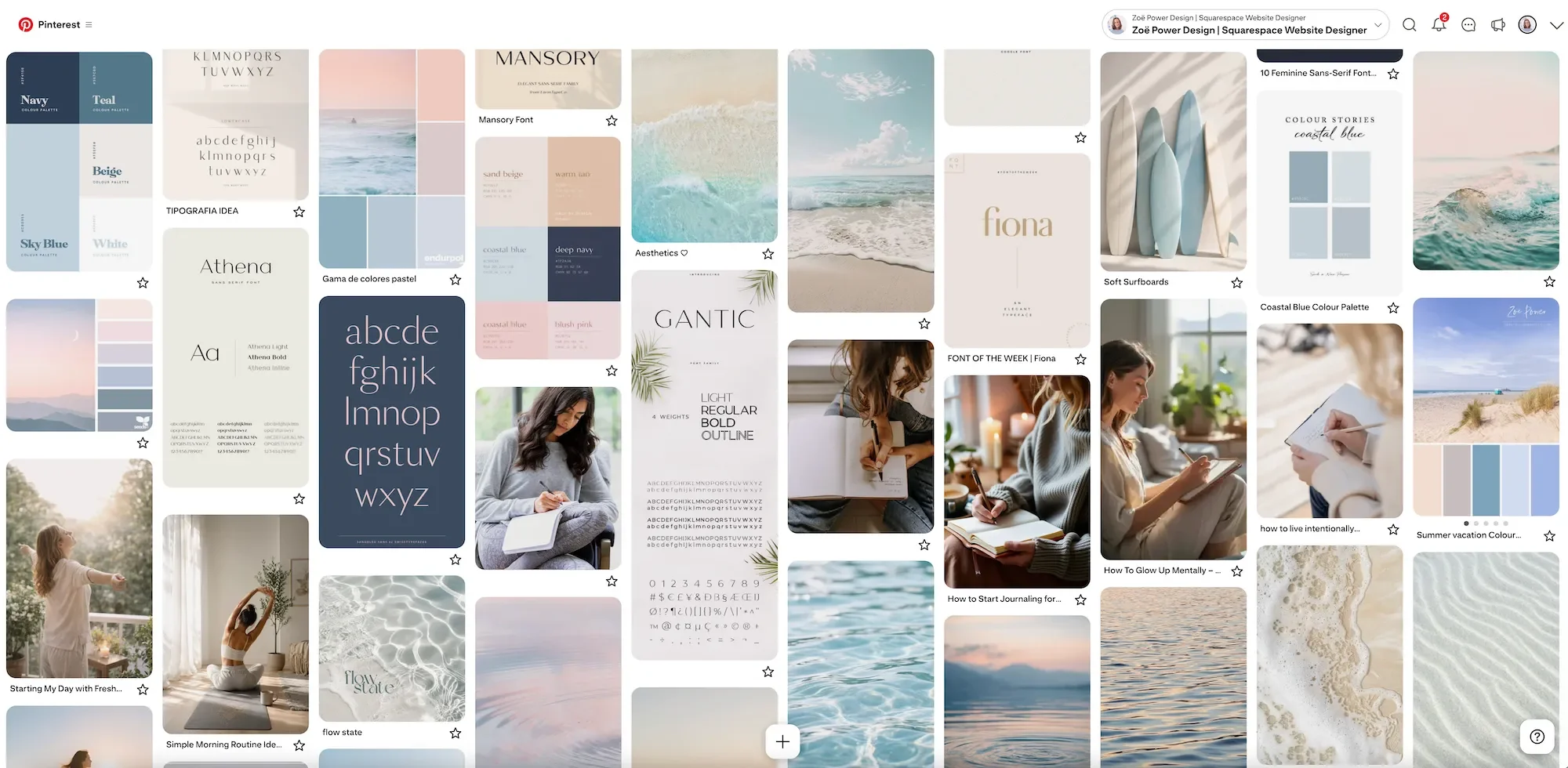
I always think it’s easiest to learn by example, so I thought I’d share an example mood board I created for a life coach. You can see lots of images from this board throughout this post.
About the brand
A life coach who helps women deal with overwhelm and bring more calm, joy and space into their lives.
Brand adjectives to describe personality, identity, uniqueness and mood
Calm, spacious, modern, organic, natural, inspiring, encouraging, supportive
Search terms I tried
Some of these are based on the brand adjectives and some are based on ideas I already had in mind that were related:
Calm aesthetic, expansiveness aesthetic, silence stillness spaciousness, coastal blues, woman writing in journal, woman walking on the beach, ripples in water, sand patterns, slow living, elegant serif fonts, clean modern sans serif fonts, calm branding, contemplation aesthetic, wellness logos.
Now it’s your turn
Head over to Pinterest and have some fun! Even if your idea is loosely formed, you’d be surprised how much clarity you can get by collecting together some visuals that match the feeling or idea you’re trying to convey. They say “a picture is worth a thousand words”. Happy pinning!
You can find me on Pinterest if you’d like to connect and explore my pins. And if you’d like some help with your website project, you can find out more about my services and how I work at zoepowerdesign.com.
Save this post to Pinterest ↓