A simple guide to understanding what a favicon is, why it matters, and how to design and add a favicon to your Squarespace website.
What is a favicon and why should I bother?
A favicon is a small browser icon that appears in the tab of a web browser when someone is viewing your website, and in search results. It’s a really helpful way of identifying your website, when someone has lots of browser tabs open and is switching between them. It also helps you present a consistent, recognisable brand image in search results.
The default favicon for Squarespace websites is a black cube, so if you don’t add your own favicon, this is what will display for your website.

The default Squarespace favicon
What makes a good favicon and what should I avoid?
Favicons are viewed at really small sizes (usually 16 pixels x 16 pixels in most browsers), so they need to be VERY simple to be legible. Go and take a look at your web browser now and see which favicons are easy to read and identify. In general, it is NOT a good idea to use your logo, unless it is a very simple icon. If your logo has lots of text it will not be legible at the size a favicon is viewed at.
What works best is usually:
A single letter set in your brand font in Bold or a thicker style (for example, mine is a Z for Zoë Power Design) or
A simple icon (for example the Gmail envelope or the Instagram camera).

Examples of favicons with a single letter

Examples of favicons with a simple icon / logo
Bear in mind that it is possible to customise the colour of your browser toolbar (mine is a pale pink for example) and switch between Light and Dark modes, so it is hard to know exactly how your favicon will look, as it could be placed against different colour backgrounds.
However, Squarespace allows you to upload a second favicon, specifically for Dark mode. So if the background of your favicon is quite dark, it would be worth creating a second version with a lighter background that would stand out when Dark mode is turned on. See below to see what the favicons look like when Dark mode is turned on. Ironically, the Squarespace logo is illegible!


Finally, the other thing to consider is that when your favicon is displayed in search results, Google shows it as a circle, rather than a square. If your favicon has a coloured background and enough padding, Google usually crops it to a circle, which looks good. However, if your favicon has a transparent background, or a border, or text or a logo that stretches right to the edge of your square, Google places your square favicon inside a circle with a white background, which doesn’t look so good.

Examples of favicons displayed in Google search results
A quick recap of what makes a good favicon
So in general, it is best to stick with either:
A solid background colour in a square with a single letter in a Bold font style (this takes up the most space in a browser tab so is most visible), with sufficient padding around it, that it would look good when cropped to a circle (for when it is viewed in search results). Circles are fine too, but they are not as visible in browser tabs, as they cover a smaller surface area.
Or a simple icon with either a solid background colour or a transparent background (this depends on the design of your icon).
And remember to create a second version of your favicon for Dark mode, if your favicon is quite dark and wouldn’t show up well against a black background.
However, there are times when you might want to deviate from this - for example, my favicon is a square with a solid border which looks very clear in browser tabs, but not ideal in search results, as it is placed inside a circle with a white background. It is a trade-off, and for now, I’m sticking with the border, as I prefer how it stands out in browser tabs.
What size and format should a favicon for Squarespace be?
Favicons should be a square format. Squarespace stipulates that all favicons should be a .png file and recommends an image resolution of between 100x100 pixels and 300x300 pixels and no more than 100KB in size. I usually create my favicons at 300x300 pixels.
How do I design a favicon for my website?
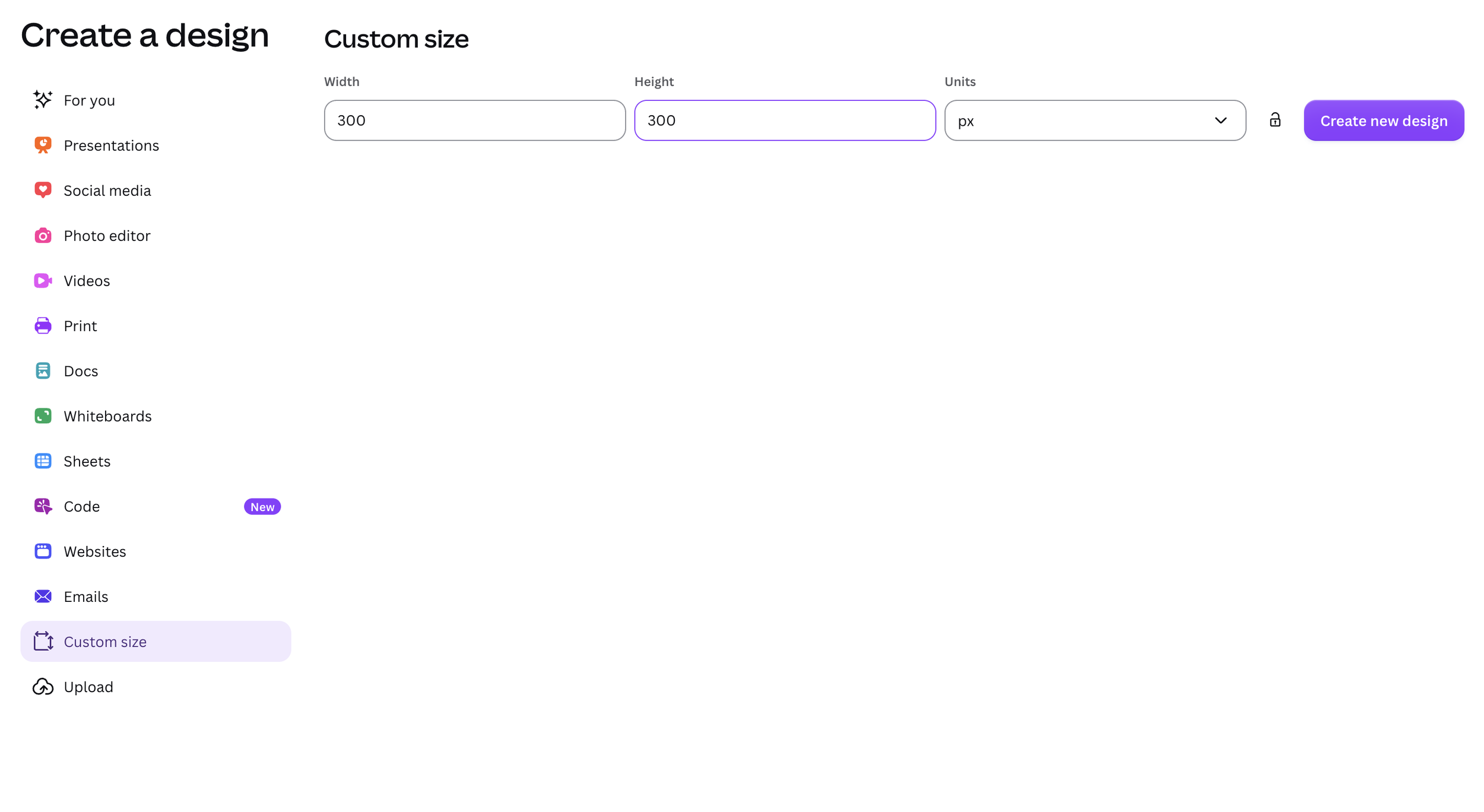
In your design software of choice (I use Figma, but for the example below I have used Canva) create a frame or design that is 300 pixels wide by 300 pixels high.
In Canva, click the Create + option in the left menu, and then select Custom Size to bring up the screen below.
Add the first letter of your brand name in your brand font, and choose a Bold font style (it needs to be thick to be visible at a small size) and a large font size, leaving a bit of space around the edge.
Then set the background colour of your frame to be your brand colour.
OR upload your very simple logo and resize as necessary (make sure your file has a transparent background).
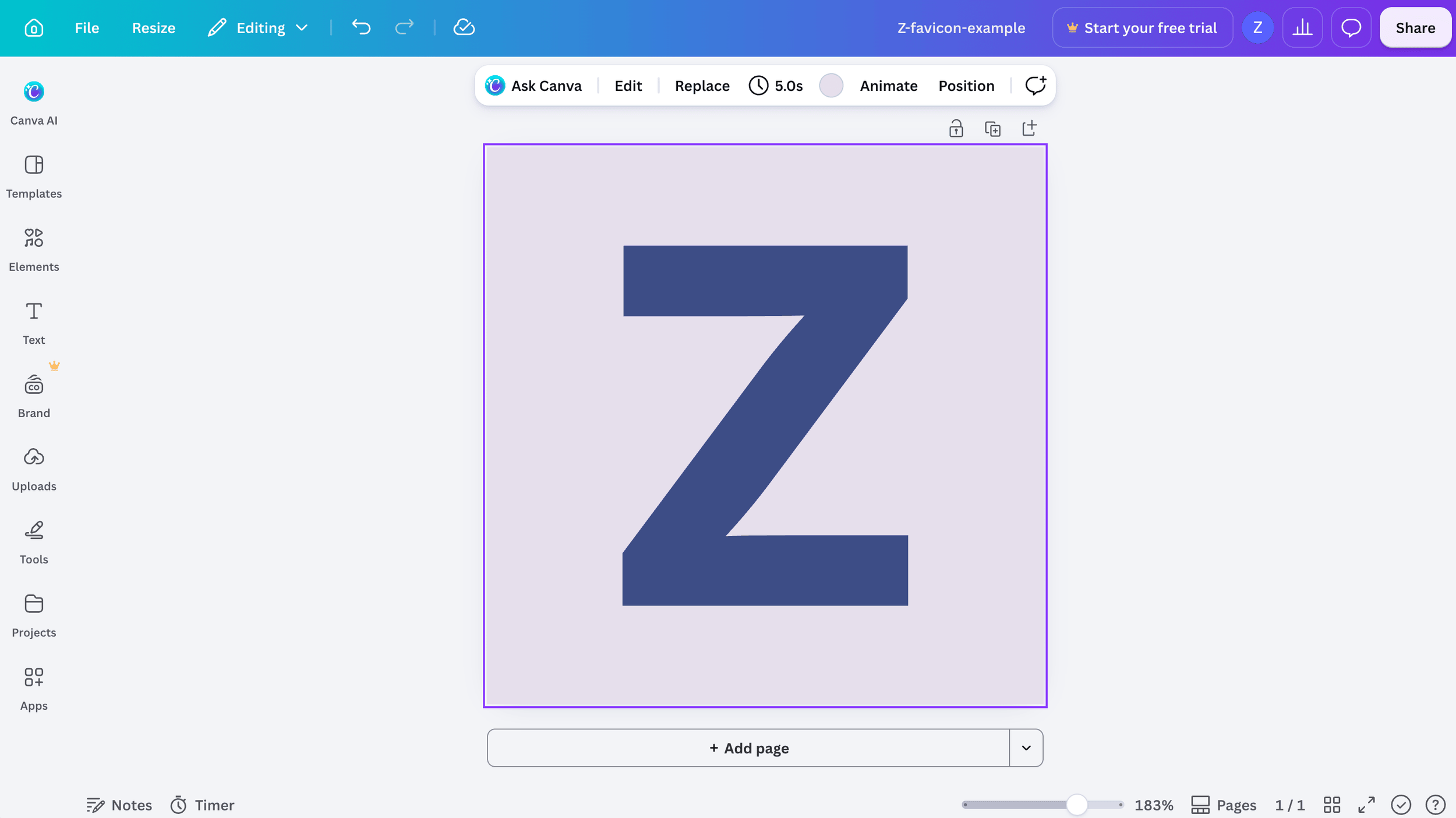
As mentioned above, you might want to create a second design for darkmode, with a lighter background colour, if your background colour is quite dark.
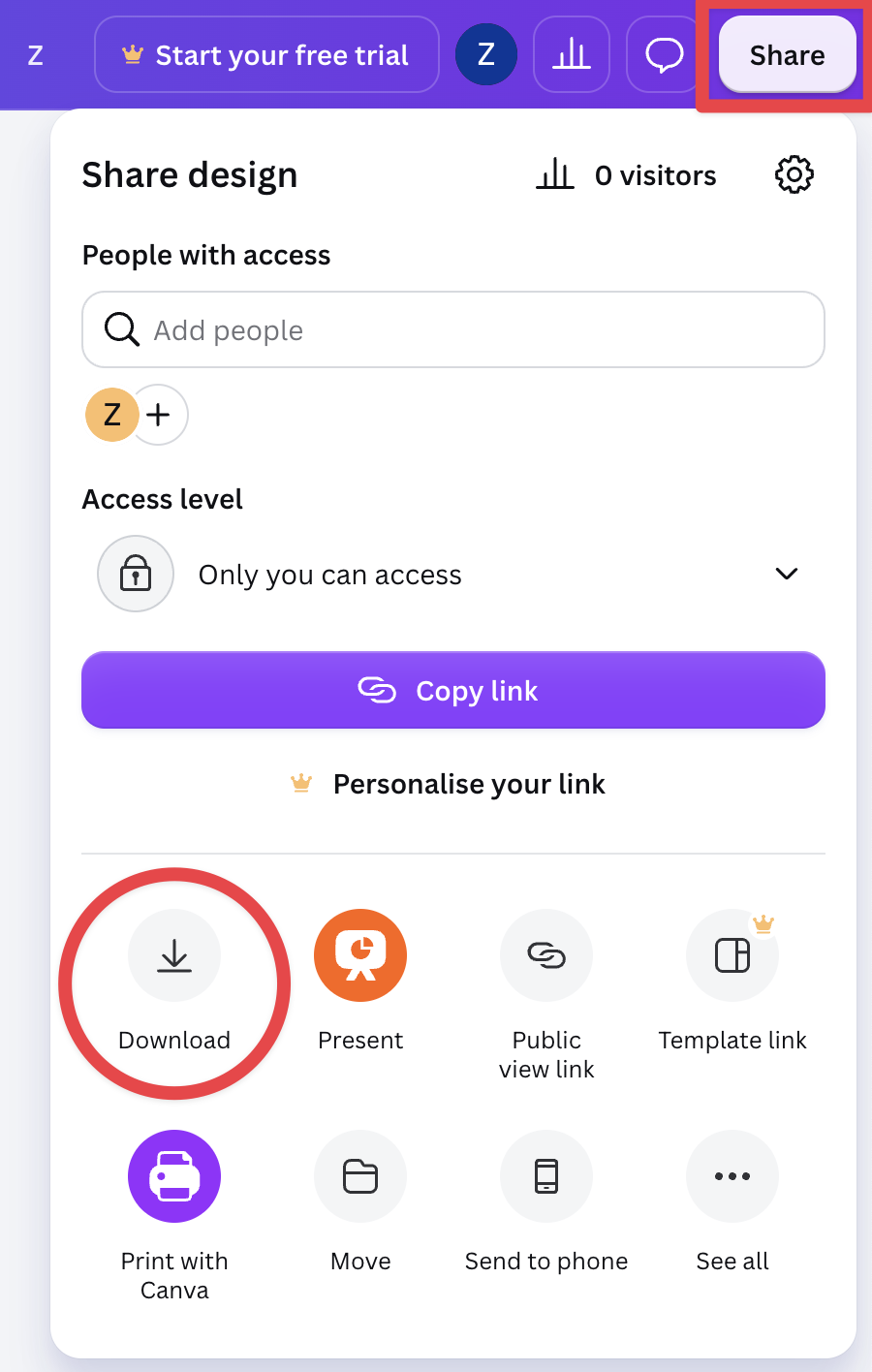
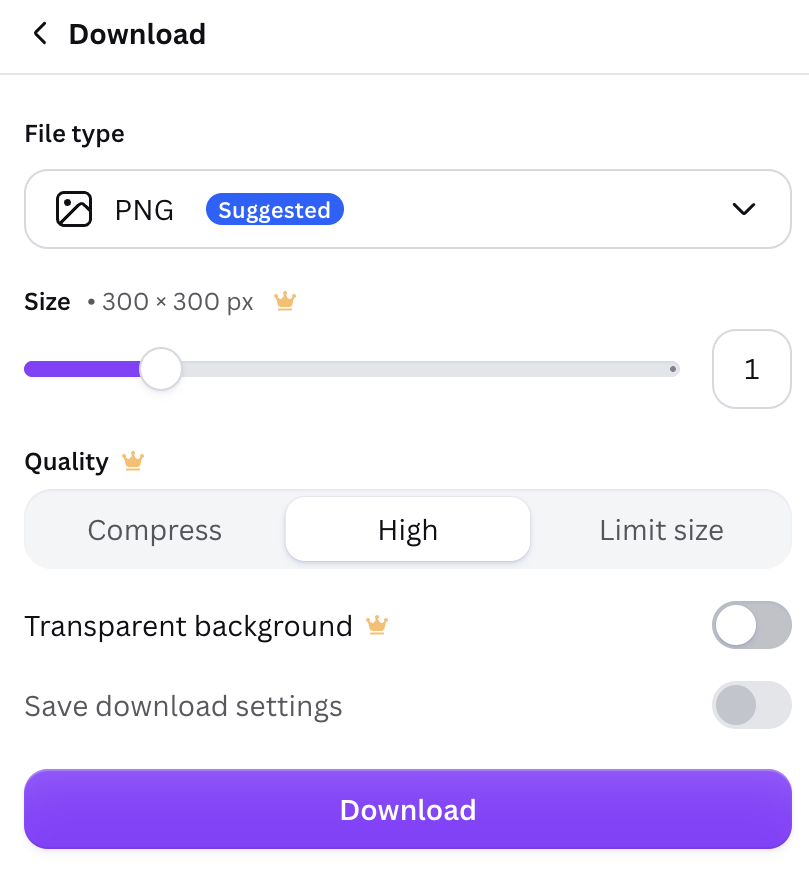
When your design is finished, click the Share button in Canva (top right) and then Download. Choose .png format and if necessary, toggle on transparent background (you will need this option if your design is a circle, for example). However, if you are using a solid colour to fill the square then this won’t be necessary.
How do I add a favicon to my Squarespace website?
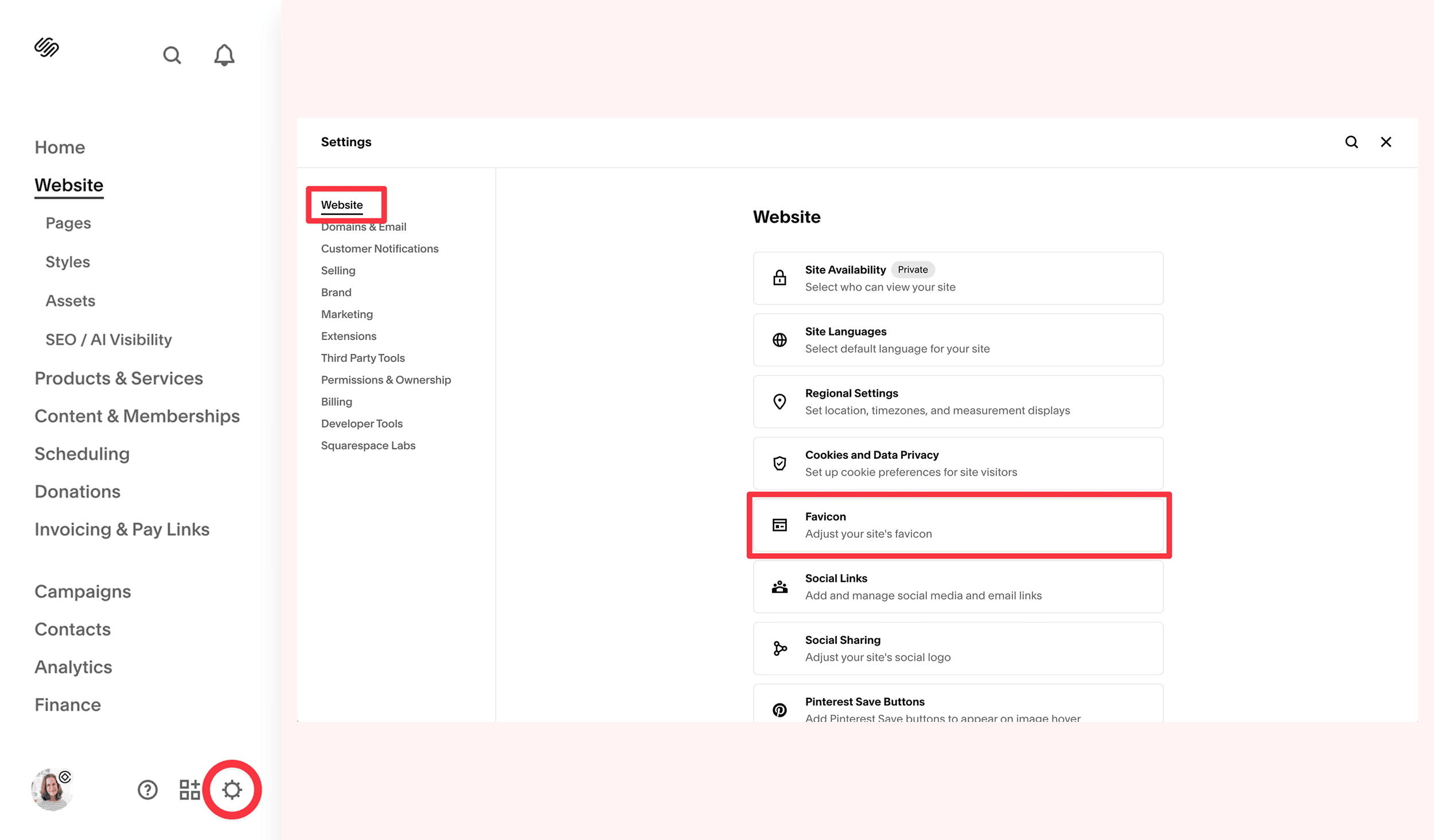
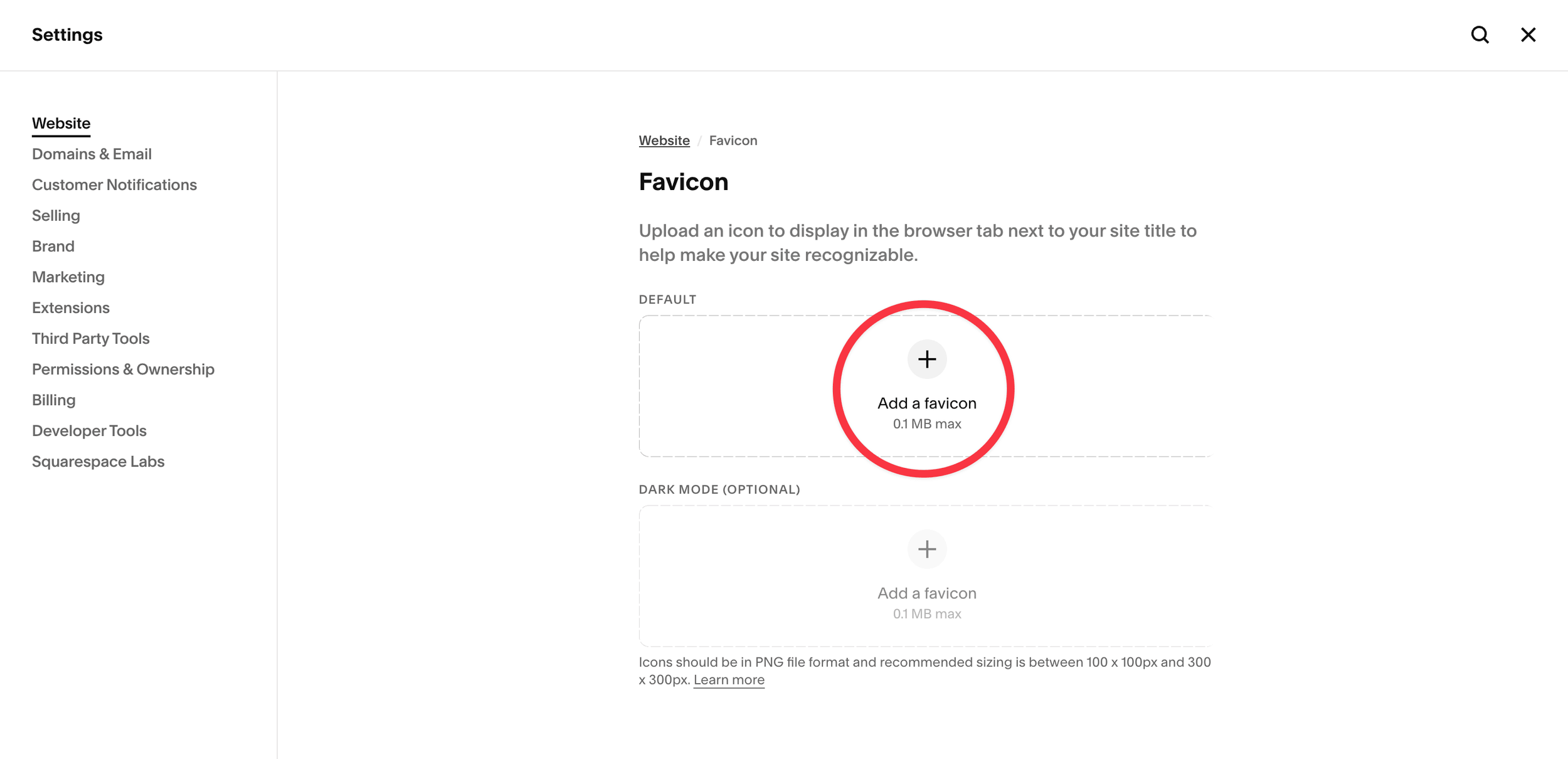
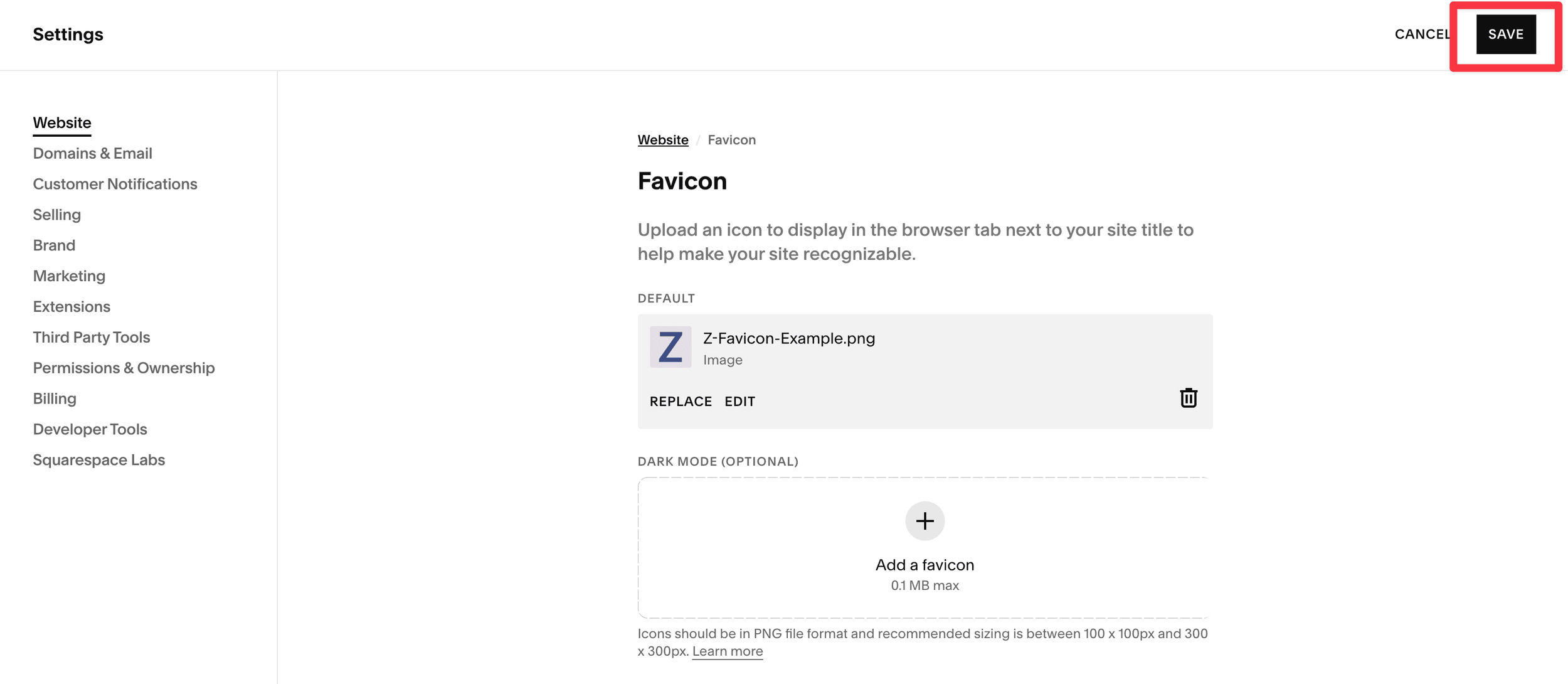
To add a favicon to your Squarespace website, go to Settings (the cog icon in the bottom right of the main menu), then under Website Settings click on Favicon, then click the + button to upload your favicon and press Save.
If you have created a second favicon for Dark Mode, then you can also upload this here.
You should now see your new favicon in your browser. It is worth also putting your web browser into Dark Mode to see what your favicon looks like in that as well.

Why isn’t my favicon showing in my web browser?
If this is the first time you are adding a favicon to your website, it usually shows up straight away. But if you are replacing an existing favicon, sometimes it won’t display straight away, as the old favicon is cached in your web browser. Try opening your web page in an incognito window (in Chrome: File > New Incognito Window) and you should see the new favicon. To clear your cache and force it to display, you can try a couple of things:
Hard Refresh
A hard refresh clear’s the cache for a single page. Try this first. To do this:
Chrome and Firefox - For Mac users, press ⌘ + Shift + R. For Windows users, press Ctrl + F5.
Safari - Press Option + ⌘ + E to clear the page's cache. Then click the refresh button in the browser's address bar or press ⌘ + R to refresh the page.
Microsoft Edge - Press Ctrl + F5. If that doesn't work, try Shift + F5.
Clear the cache in your web browser
The instructions for doing this vary by web browser. See the Squarespace Help Article on Clearing your browser’s cache for links to the instructions for each browser.
Note that if you do this, you will likely need to sign in to some websites again, and websites might take a bit longer to load, as they will need to load all the images from scratch.
In Chrome, however, you can choose to just delete “Cached images and files” and you can choose the time frame, so this is a bit less disruptive.
So that’s it. A quick, simple guide to creating and adding a favicon to your Squarespace website. NB. This is something I do for all my clients as part of my web design process. If you’re interested in getting some help with your web design project, then please take a look at my web design services for more information.
Save this post to Pinterest ↓